How to Add a Camera on Tactacam
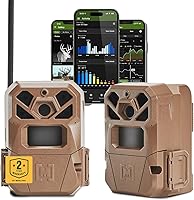
Open the REVEAL app, sign in or create an account, tap Add Camera and scan the QR code on the camera's SIM card. Follow the prompts to name the camera and set its photo and video options, and photos start arriving once the camera locks onto a cellular signal.
On this page (7 sections)
- What do you need before you add a Tactacam camera?
- How do you add a camera in the REVEAL app?
- How do you mount the camera after it's added?
- Why won't the camera connect after you add it?
- How do you test the first photo and place the camera well?
- How do you manage cameras already in the app?
- What should you know before buying a Tactacam camera?
Open the REVEAL app, sign in or create an account, tap Add Camera and scan the QR code on the camera's SIM card. Then follow the prompts to name the camera and set its photo and video options.
Photos start arriving once the camera locks onto a cellular signal. The camera arrives with its SIM card and antenna already fitted, so how to add a camera on Tactacam is mostly app work.
The scan takes seconds, and the real variable is whether your chosen tree has enough signal.
What do you need before you add a Tactacam camera?
A charged camera, the REVEAL app on your phone and a spot with cellular coverage are the basics. Tactacam says the antenna and SIM card come pre-installed, so there's no hardware to fit first.
The Reveal X 3.0 runs on its own batteries or on an add-on power source. Check the battery setup before you scan, because a camera that dies mid-setup means starting over.
Set up the app and account first
Download the REVEAL app and create an account or sign in. Do this at home on Wi-Fi rather than in the field.
An account links every camera you add to one login. Pick a password you'll remember, since you'll use it whenever you check photos or change settings.
Check the camera before you scan
Open the battery compartment and confirm the cells are seated the right way. The camera's built-in storage means there's no memory card to insert or format.
Turn the camera on and watch for its startup light. If it doesn't power up, recheck the batteries before opening the app.
How do you add a camera in the REVEAL app?
Tap Add Camera in the app and scan the QR code on the camera's SIM card. The app reads the code and attaches the camera to your account automatically.
Tactacam says the QR scan is the main step, and that most hunters are live and receiving photos in under 10 minutes. If the code won't read, type in the camera's serial number when the app offers that option.
Scan the QR code on the SIM card
The SIM card sits in its slot with the QR code facing out. Point your phone's camera at the code and hold it steady until the app confirms the read.
Do this before you strap the camera to a tree. It's much easier to scan in your hand than to balance a phone against bark in the dark.
Name the camera and set its options
Give the camera a name that matches its location, such as "North food plot" or "Ridge saddle." Clear names matter once you run several cameras on one account.
Set the photo resolution, video length and trigger sensitivity in the app. Tactacam lists 4K photos and 1080p video for the Reveal X 3.0, so choose what your plan and storage can handle.
How do you mount the camera after it's added?
Strap the camera to a sturdy tree at chest height, angled slightly down, and keep brush cleared from the lens. The Reveal X 3.0 uses a strap mount and measures 3.75 x 4 x 11.9 inches.
Face the camera north or south when you can. Morning and evening sun straight into the lens can wash out the very photos you're after.
Use a mount for better aiming
A tree mount makes fine aiming easier than a strap alone. The ORIPIK tree mount uses a pointed screw or expansion screw and a 360-degree rotating ball head.
Its 1/4-inch threaded knob fits cameras and solar panels that use the same thread. Check that your model takes that fitting before you drill anything.
Lock the camera down on public land
A steel security box adds theft protection where cameras can disappear. The Tactacam Reveal Steel Security Box fits seven REVEAL models, including the X 3.0.
It mounts by lag bolt, strap or bungee, and the front padlock hole takes a lock you supply. Tactacam backs it with a 1-year warranty.
Why won't the camera connect after you add it?
The camera almost always needs a stronger cellular signal, not another scan. The app shows the camera as added, but photos won't arrive until the modem finds a network.
Tactacam fits an auto-connect multi-carrier LTE SIM that locks onto AT&T or Verizon, whichever is stronger at the spot. Move the camera a few feet or raise it higher before you assume the setup failed.
Check signal strength in the app
Open the camera in the app and read the signal indicator. If it's weak, try the other side of the tree or a nearby clearing.
Thick timber, a hillside or a metal building can all block a usable signal. A small move often fixes what a settings change cannot.
Confirm the settings you chose
Recheck the photo and video options you set during setup. A long video clip on every trigger fills storage faster and drains batteries sooner.
If the camera still won't report in, turn it off and on again, then reopen the app. Our Tactacam Reveal Pro review covers how the app behaves on a related model.
How do you test the first photo and place the camera well?
Walk in front of the camera and wait for a trigger, then check that the photo shows up in the app. A clear test shot confirms both the aim and the connection.
Tactacam lists a sub-half-second trigger and a 3-shot burst on the Reveal X 3.0. Aim the camera at a trail or scrape rather than open ground so passing deer walk through the frame.
Clear the view and set the height
Trim branches and tall weeds in front of the lens. Chest height, angled down at the trail, usually beats a high mount for catching body shots.
Check the view in the app's test mode before you leave. What looks clear from the ground can hide brush once the camera is strapped up.
Pick the right spot and plan the power
Place cameras on field edges, scrapes, rub lines or pinch points between bedding and food. Avoid spots where cattle, tractors or foot traffic will set off hundreds of blank triggers.
Battery life depends on photo count and signal strength. For power options, see our guide to trail camera batteries before you commit to a long soak.
How do you manage cameras already in the app?
Keep each camera named by location and check its status from the app before you plan a trip. The app is your dashboard for every camera on the account.
If a camera stops sending, look at the signal first and the battery level second. Most missed photos trace back to one of those two.
Move or re-aim a camera without re-adding it
You don't need to scan the code again just to shift a camera to a new tree. Remount it, re-aim the lens and watch the signal indicator after the move.
Rename the camera in the app if the new spot changes what it watches. An old name like "North plot" gets confusing when the camera now sits on a creek crossing.
When to add the camera again
Add the camera fresh only if you've removed it from the account or replaced its SIM card. A plain relocation or a battery change doesn't need a new scan.
If you switch cameras between properties, keep each one under its own clear name so photo histories stay easy to sort. That habit matters once you run several setups.
What should you know before buying a Tactacam camera?
Buy a camera with the SIM and antenna pre-installed if you want the quickest setup, and match the model to your coverage. The Reveal X 3.0 is the straightforward choice for a first cellular camera.
Its built-in storage sends photos straight to your phone, and Tactacam lists up to 6+ months of battery life. The box pairs well with the mount and security box above.
If you're still comparing brands and models, our trail camera buying guide and plain game camera guide cover what matters before you buy.
Adding a camera on Tactacam comes down to the app scan, a clear name and a strong signal. Pick a spot with coverage first, mount it at chest height and confirm one test photo.
Then leave it alone and let the photos come to you.
Frequently asked questions
How do I add a Tactacam to the app?
Sign in to the REVEAL app and tap Add Camera, then scan the QR code on the camera's pre-installed SIM card. The app links the camera to your account and walks you through naming it and choosing photo and video settings.
Do I need an SD card to add a camera on Tactacam?
No. Reveal X 3.0 cameras come with built-in storage and transfer photos straight to your phone, so there's no separate card to buy or format.
Other REVEAL models may use a card, so check what your own camera includes before you start.
Why won't my Tactacam camera show up after I add it?
The camera usually needs more time to find a cellular signal at its spot. Check the signal strength in the app, move the camera to a more open position, and confirm the SIM card and antenna are seated before scanning again.
Can I move a camera to a new spot without adding it again?
Yes. Leave the camera in your app and just remount it at the new location.
Watch the signal indicator after the move and re-aim the lens, since a camera that worked well in one spot can struggle under thick cover.
How long does adding a camera take?
Most people finish in under 10 minutes once the app is installed. The scan and setup prompts are quick, and most of the time goes into mounting the camera, aiming it and waiting for the first photo to arrive.
Can I add more than one camera to the same account?
Yes. You can add several REVEAL cameras to one account and see them all in the app.
Give each camera a clear name tied to its location so you know which photos belong to which stand.